
Deploying applications to AWS has a reputation: powerful, flexible… and occasionally capable of turning a calm afternoon into an unexpected adventure. Between IAM roles, container images, and networking choices, it’s easy to feel like you need a map and a compass just to get a “Hello, world” online.
That’s where AWS App Runner comes in. It promises a simpler path: bring your application, point to a container or source repository, and let AWS handle the heavy lifting, including scaling, load balancing, and infrastructure management.
In this article, we’ll walk you through the process of deploying a FastAPI application on AWS App Runner, focusing on a clean, production-ready setup without unnecessary complexity.
If you enjoy fast APIs, fewer YAML files, and deployments that don’t require a ritual sacrifice, you’re in the right place.
AWS configurations
Before writing any code, we need to set up a few basic resources in AWS. These configurations allow App Runner to pull our container image securely and run the FastAPI application.
Elastic container registry repository
First, create a repository to store the Docker image for the FastAPI application.
- Navigate to Amazon ECR → Create repository.
- Choose a name for the repository. In this article, we’ll use: fastapi-app-runner
- Click Create repository.
After creation, copy and keep the Repository URI. We’ll need it later when building and pushing the Docker image.
App Runner role
App Runner needs explicit permission to pull images from Amazon ECR. We’ll grant this access by creating an IAM role.
- Go to IAM → Roles → Create role.
- Select Custom trust policy.
- Paste the following JSON into the policy editor:
{
  "Version": "2012-10-17",
  "Statement": [
    {
      "Effect": "Allow",
      "Principal": {
        "Service": "apprunner.amazonaws.com"
      },
      "Action": "sts:AssumeRole"
    }
  ]
}Code language: JSON / JSON with Comments (json)- Click Next.
- On the Permissions page, search for and attach the policy: AWSAppRunnerServicePolicyForECRAccess
- Click Next, give the role a meaningful name (for example, AppRunnerECRAccessRole), and then click Create role.
Read more: Building Neural Networks from Scratch
Creating the App Runner service
With the AWS prerequisites in place, we can now create the App Runner service that will run our FastAPI application. Follow the steps below:
- Navigate to AWS App Runner → Create service.
- For Repository type, select Container registry.
- For Provider, choose Amazon ECR. Paste the ECR repository URI created in the previous section and append the image tag :latest
- For Deployment trigger, select Automatic. With this option enabled, every new image pushed to ECR automatically triggers a new App Runner deployment.
- Select Use existing service role and choose the IAM role created earlier. This role allows App Runner to pull images from ECR.
- Click Next to open the Configure service page.
- Provide a name for your service.
- For simplicity, keep the default settings on this page. These options control instance size, scaling behavior, and additional IAM roles, which are more advanced topics and outside the scope of this article. We’ll cover them in a future post.
- Review the configuration and click Create & deploy.
Once the service is created and the deployment completes, App Runner will start running your containerized FastAPI application. From this point on, we can focus on adapting the application code to work seamlessly with App Runner.
Read more: Beyond “Vibe Coding”: Engineering with AI and Cursor
CI/CD foundations: Connecting GitHub to AWS
To automate the build and deployment process, we need to configure GitHub with the required AWS credentials and environment-specific variables. This will allow our GitHub Actions workflow to authenticate with AWS and push Docker images to Amazon ECR.
Create a GitHub environment
Using environments helps isolate credentials and apply additional controls, such as required reviewers or environment-specific secrets.
- Go to your GitHub repository.
- Navigate to Settings → Environments.
- Click New environment.
- Give the environment a name (for example, production or staging) and save it.
Managing AWS credentials and deployment variables securely
Add environment secrets
With the environment created, we can now add the secrets required by the CI/CD pipeline.
- Open the environment you just created.
- Under Environment secrets, click Add secret.
- Add the following secrets: AWS_ACCESS_KEY, AWS_SECRET_ACCESS_KEY, AWS_REGION, ECR_REPOSITORY_URI. Read this article to get the KEY variables.
Make sure the IAM credentials used here have permission to authenticate to ECR and push images to the repository.
Security best practices for CI/CD
- Store credentials only as GitHub secrets. Never commit them to the repository.
- Use a dedicated IAM user or role with least-privilege permissions, limited to ECR access.
- If possible, consider using OIDC-based authentication with GitHub Actions to avoid long-lived AWS credentials. This approach is more secure and better suited for production environments.
With the GitHub environment and secrets configured, we’re ready to create the GitHub Actions workflow that builds the Docker image and pushes it to Amazon ECR automatically.
Code changes: adapting the application for App Runner execution
Let’s start with the file responsible for instantiating the FastAPI application. The code snippet below illustrates a minimal FastAPI setup, exposing a single GET /health endpoint.
import os

from fastapi import FastAPI
from fastapi.middleware.cors import CORSMiddleware
from starlette.middleware.sessions import SessionMiddleware


app = FastAPI()

app.add_middleware(
    CORSMiddleware,
    allow_origins=["*"],
    allow_credentials=True,
    allow_methods=["*"],
    allow_headers=["*"],
)

app.add_middleware(SessionMiddleware, secret_key=os.getenv("JWT_SECRET_KEY", "default"))

@app.get("/health")
async def health_check():
    """Health check endpoint."""
    return {"status": "ok"}Code language: JavaScript (javascript)
Now, let’s take a look at the Dockerfile. This file is intentionally simple: it installs the dependencies using the uv package manager, sets the working directory, and invokes the entrypoint.sh script. Pay special attention to the exposed port, which must match the port configured in AWS App Runner (8080 by default).
FROM python:3.12.11-slim-bookworm AS builder

COPY --from=ghcr.io/astral-sh/uv:latest /uv /uvx /bin/

WORKDIR /app
ENV PATH="/app/.venv/bin:$PATH"

ENV UV_LINK_MODE=copy

COPY pyproject.toml uv.lock .python-version ./
RUN uv sync --locked --no-dev
RUN uv pip install --system alembic

COPY . .

FROM python:3.12.11-slim-bookworm

COPY --from=ghcr.io/astral-sh/uv:latest /uv /uvx /bin/
RUN apt-get update && \
    apt-get upgrade -y && \
    apt-get clean && \
    rm -rf /var/lib/apt/lists/* /tmp/* /var/tmp/*

RUN pip install --upgrade pip setuptools

WORKDIR /app
ENV PATH="/app/.venv/bin:$PATH"

COPY --from=builder /app /app
COPY entrypoint.sh /entrypoint.sh

RUN chmod +x /entrypoint.sh

EXPOSE 8080

ENTRYPOINT ["/entrypoint.sh"]Code language: JavaScript (javascript)
The docker-compose.yml file is also straightforward. It references the Dockerfile, exposes the container ports, and loads environment variables from the .env file.
services:
  singuessr:
    build:
      context: .
      dockerfile: Dockerfile
    ports:
      - "8080:8000"
    env_file:
      - .envCode language: CSS (css)
Finally, the entrypoint.sh script starts the Uvicorn server, listening on port 8080.
#!/bin/sh

set -e

echo "Starting application..."
uv run uvicorn main:app --host 0.0.0.0 --port 8080Code language: PHP (php)
Automating builds and deployments with GitHub Actions
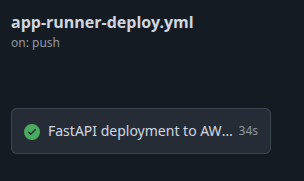
Create a file named .github/workflows/app-runner-deploy.yml at the root of your project and add the configuration shown below. This workflow defines the GitHub Actions pipeline responsible for the deployment process. It performs the following steps: authenticates with AWS, builds the Docker image, tags the image, and pushes it to Amazon ECR.
name: AWS App Runner Deploy Develop

on:
  push:
    branches:
      - main # ← branch name

jobs:
  deploy:
    name: FastAPI deployment to AWS App Runner
    runs-on: ubuntu-latest
    environment: Production # ← Github environment

    steps:
      - name: Checkout
        uses: actions/checkout@v3

      - name: Configure AWS Credentials
        uses: aws-actions/configure-aws-credentials@v2
        with:
          aws-access-key-id: ${{ secrets.AWS_ACCESS_KEY }}
          aws-secret-access-key: ${{ secrets.AWS_SECRET_ACCESS_KEY }}
          aws-region: ${{ secrets.AWS_REGION }}

      - name: Login to Amazon ECR
        uses: aws-actions/amazon-ecr-login@v1

      - name: Build Docker image
        run: |
          docker build \
            -t fastapi-app-runner:latest \
            -f Dockerfile .

      - name: Tag Docker image
        run: |
          docker tag fastapi-app-runner:latest \
            ${{ secrets.ECR_REPOSITORY_URI }}:latest

      - name: Push Docker image to ECR
        run: |
          docker push ${{ secrets.ECR_REPOSITORY_URI }}:latestCode language: PHP (php)
After committing and pushing your changes to the appropriate branch (in this example, the branch named main), you will see the workflow execution in the Actions tab. If everything is configured correctly, all steps will complete successfully.
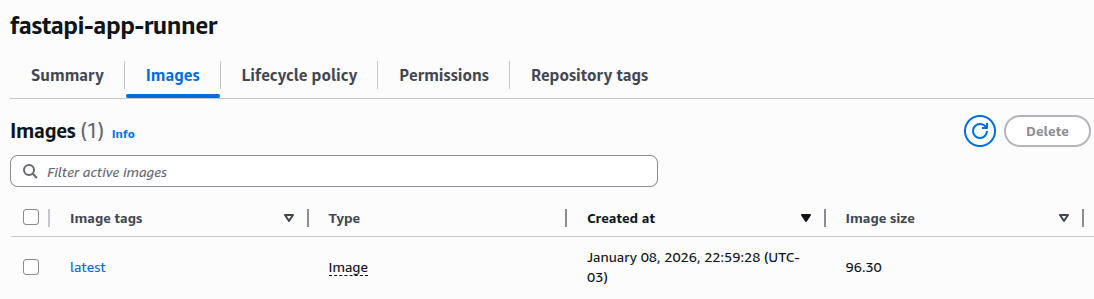
The final result is a Docker image available in your Amazon ECR repository.
App Runner deploying: triggering and monitoring automatic deployments
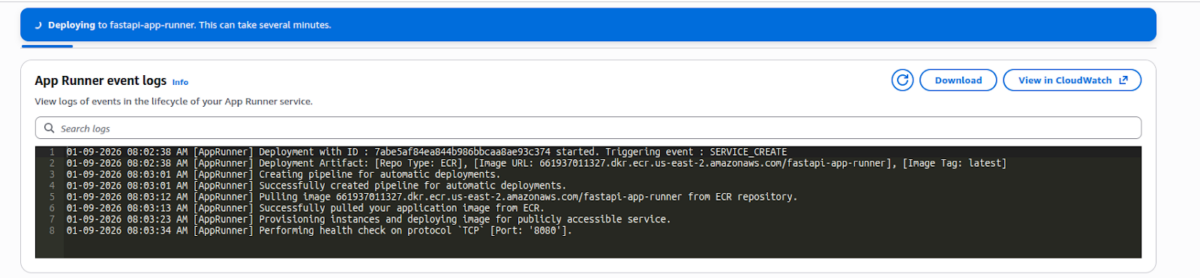
After you push your code to the branch defined in the GitHub Actions workflow, the App Runner deployment will be triggered automatically. You can monitor the deployment process and review all runtime logs directly in the App Runner service console.
The deployment should complete within a few minutes.
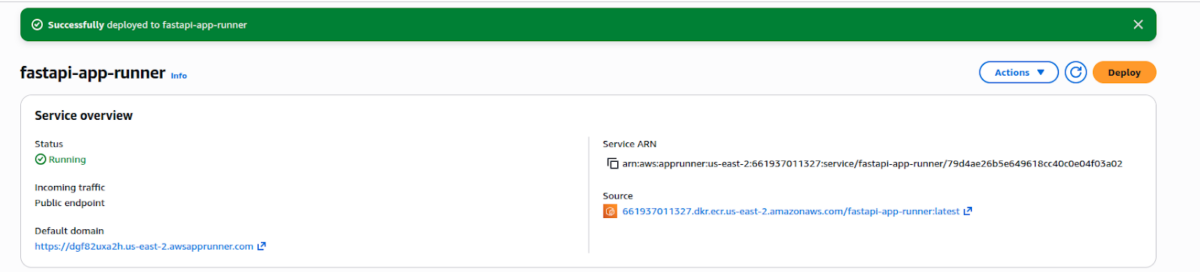
To test the application, access its URL by clicking the Default domain and, for example, request the /docs endpoint to view the API documentation.
Final comments and next steps
AWS App Runner offers a compelling balance between simplicity and operational robustness. For containerized applications like FastAPI services, it removes much of the traditional overhead associated with infrastructure management while still integrating cleanly with the broader AWS ecosystem.
Why App Runner works well for FastAPI
- Minimal operational overhead: No need to manage clusters, load balancers, or scaling policies manually.
- Native container support: Direct integration with Amazon ECR simplifies the deployment pipeline.
- Automatic scaling: The service scales up and down based on traffic without additional configuration.
- Built-in security and networking: HTTPS, load balancing, and service isolation are handled by AWS.
- Fast iteration cycles: Combined with GitHub Actions, deployments become predictable and repeatable.
For many backend services and APIs, App Runner hits a sweet spot between fully managed platforms and more complex solutions like ECS or EKS.
Read more: AWS FinOps Best Practices: How to Cut and Optimize Cloud Costs
Next steps: scaling, security, and operational enhancements
While this article focuses on a simple and functional setup, there are several areas worth exploring next:
- Fine-tune instance configuration: App Runner allows you to adjust CPU and memory settings, concurrency limits, and auto-scaling behavior. These options are essential for optimizing performance and cost as traffic grows.
- Infrastructure as Code with Terraform: Managing App Runner services, IAM roles, and ECR repositories with Terraform improves reproducibility and governance. It also makes multi-environment setups (staging, production) easier to maintain and review.
- Security improvements: Consider replacing static AWS credentials in GitHub Actions with OIDC-based authentication and tightening IAM permissions following the principle of least privilege.
- Observability and monitoring: Integrate Amazon CloudWatch logs, metrics, and alarms to gain better visibility into application behavior and performance.
In short, App Runner is an excellent entry point for running production-grade FastAPI applications on AWS. As requirements grow, you can progressively layer in more control and automation without abandoning the simplicity that makes App Runner attractive in the first place.